SMTP Configuration
SMTP Configuration for Email Services
SMTP allows the platform to send system emails such as:
- User registration confirmations
- Password reset emails
- Alert notifications
SMTP settings can be configured at the following levels:
- Controller-level (managed by system administrator via Rafay Admin CLI) — Default settings for the entire platform (all partners and organizations)
- Partner-level (Ops Console) – Applies to all organizations under a partner
- Organization-level (Web Console) – Applies only to one organization
Note: Controller-level configuration is managed exclusively by your system administrator. If you need changes at this level, contact your system administrator directly.
How SMTP Settings Work
SMTP settings follow a hierarchical override model. Settings at a lower level override those at a higher level:
- Controller-level settings act as the platform-wide default.
- Partner-level settings override controller-level settings for all organizations under that partner.
- Organization-level settings override partner-level settings for that specific organization only.
The following table shows the effective configuration for different scenarios:
| Scenario | Effective SMTP Config |
|---|---|
| Only controller configured | Controller settings used for all partners and organizations |
| Controller + partner configured | Partner settings used for all organizations under that partner |
| All three configured | Organization settings used for that organization; other organizations under the partner use partner settings |
| Partner configured, organization not configured | Partner settings used for organizations under that partner |
Required SMTP Settings
You must provide the following:
| Field | Description |
|---|---|
| Host | SMTP server hostname or IP address |
| Port | SMTP server port number |
| Username | SMTP login username |
| Password | SMTP login password |
| TLS | Enable TLS encryption (recommended) |
Common SMTP Ports
| Port | Protocol | Notes |
|---|---|---|
| 587 | STARTTLS | Recommended for most providers |
| 465 | SSL/TLS | Used by some providers (e.g., legacy Gmail) |
| 25 | None/STARTTLS | Not recommended; often blocked by ISPs |
Controller-Level SMTP Configuration
Controller-level SMTP defines the platform-wide default SMTP behavior for all partners and organizations.
Note: Controller-level SMTP configuration requires direct access to the platform infrastructure and is managed exclusively by your system administrator. For radm-based configuration steps, refer to the SMTP Configuration — Administrator Guide. To configure or update controller-level SMTP settings, please contact your system administrator.
Partner-Level SMTP Configuration (Ops Console)
Partner-level SMTP settings apply to all organizations under a partner and override controller-level settings.
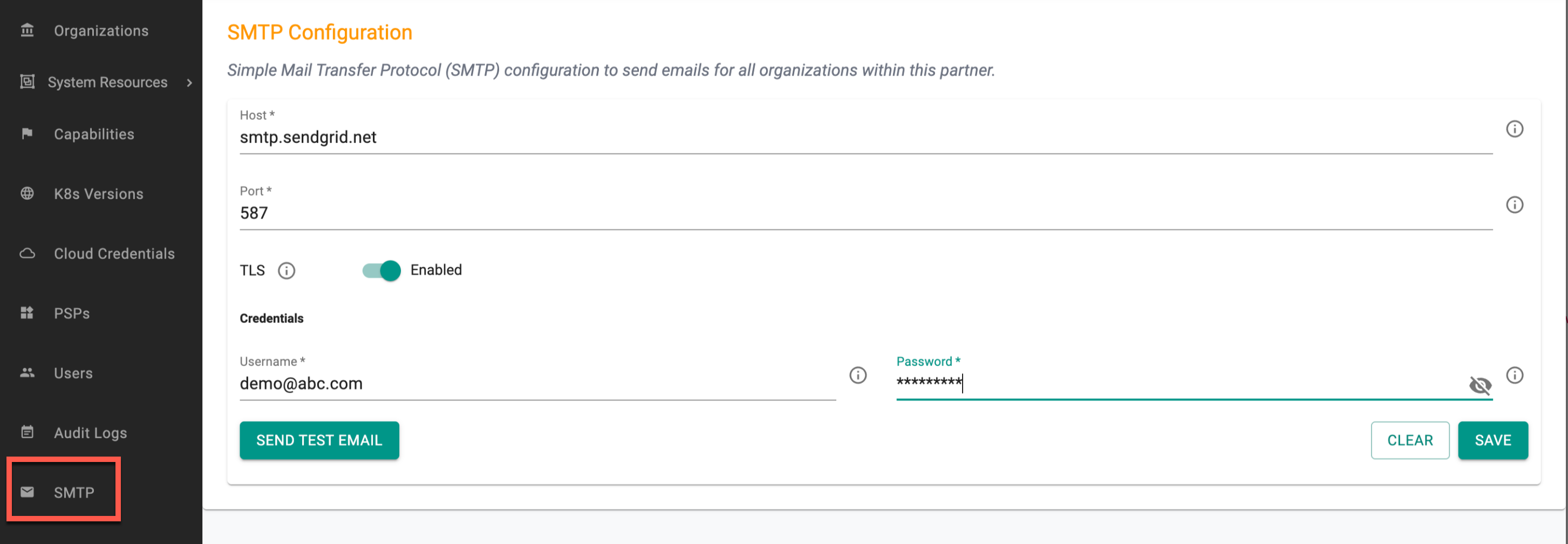
- Log in to the Ops Console as a partner admin and select SMTP from the left navigation menu.
-
Enter the following details:
- Host: SMTP server hostname or IP address
- Port: SMTP server port
- TLS: Enable or disable encryption
- Username: SMTP authentication username
- Password: SMTP authentication password
-
(Optional) Click Send Test Email to verify the configuration.
- Click Save to apply the configuration.
Organization-Level SMTP Configuration (Web Console)
Organization-level SMTP settings apply only to the selected organization.
Important: The SMTP Configuration feature may not be available to all organizations by default. If you do not see this option, contact your partner admin or system administrator to enable it for your organization.
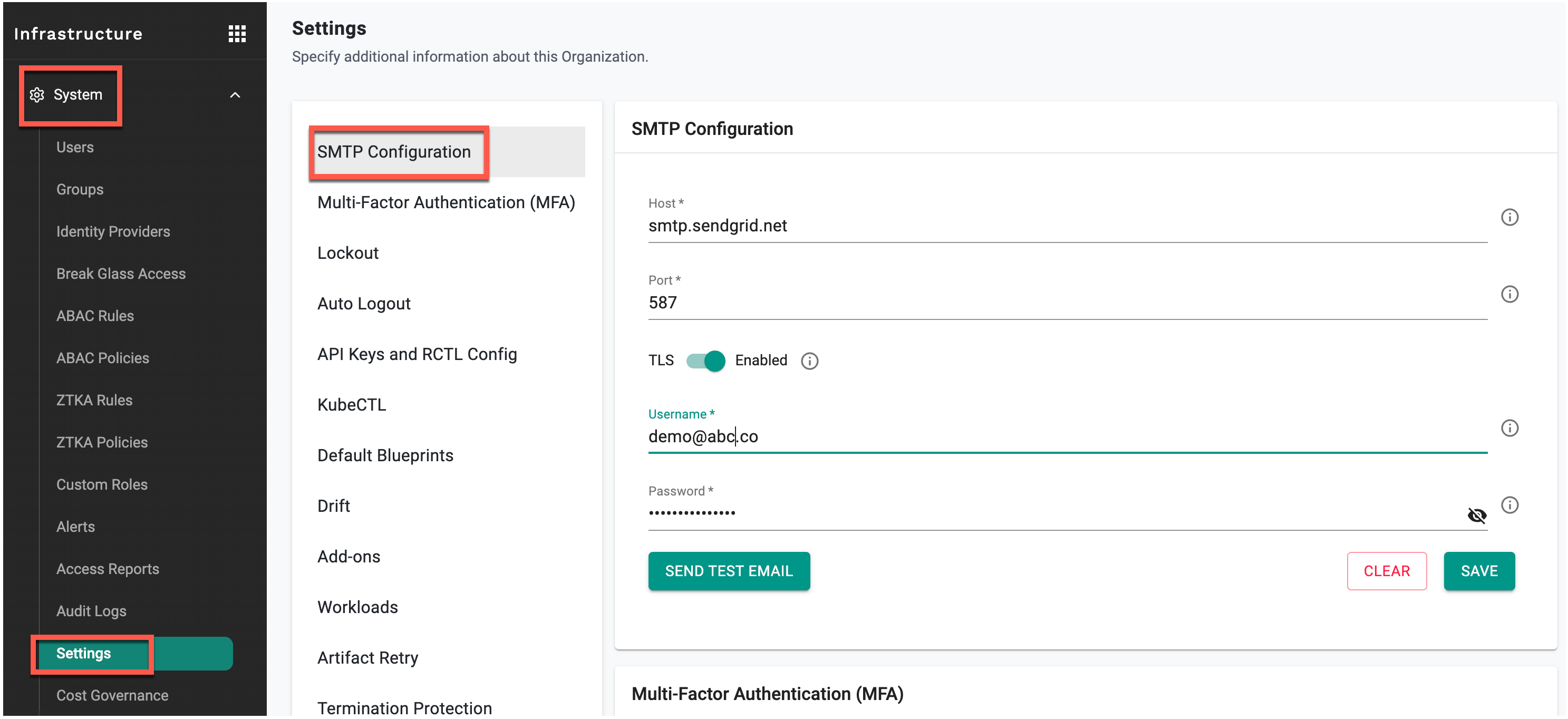
- Navigate to Infrastructure → System → Settings.
- Under Settings, select SMTP Configuration.
-
Provide the following details:
- Host: SMTP server hostname (for example,
smtp.gmail.comorsmtp.sendgrid.net) - Port: SMTP server port (commonly
587for TLS) - TLS: Enable or disable TLS encryption
- Username: SMTP authentication username
- Password: SMTP authentication password
- Host: SMTP server hostname (for example,
-
(Optional) Click Send Test Email to verify the configuration.
- Click Save to apply the configuration.
Troubleshooting
If Send Test Email fails or emails are not being delivered:
- Verify the SMTP hostname, port, and credentials are correct.
- Confirm the TLS setting matches your SMTP provider's requirements (see Common SMTP Ports above).
- Ensure your network allows outbound connections on the configured SMTP port.
- If the issue persists, contact your system administrator.